

Certified member onboarding
Getting started on RedRightBuyer
You control your own listing: your description, your political lean, your photos, your hours, and your menus. This guide walks you through your first login and every part of your member back office, in the order you will see it.
Log in to your accountKeep this page handy. You can reopen it any time from the New Member Guide link in the site footer.
1Logging in the first time
Your welcome email contains three things: the email address on your account, your Member ID (format M-00000), and a 4 digit code. You use them once to set your password. After that you log in with your email and password only.
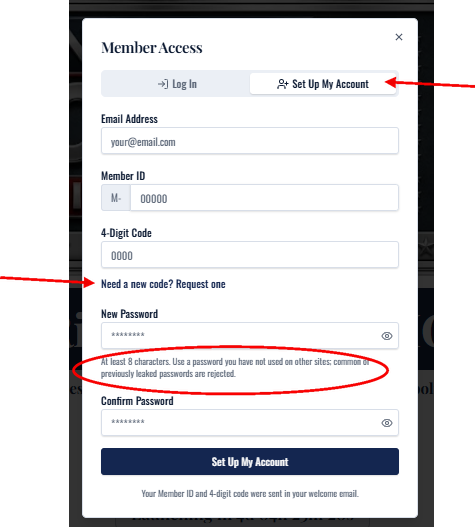
Click the RRB Login icon at the top right of any page. A Member Access window opens with two tabs: Log In and Set Up My Account. First time members use Set Up My Account.
Set up your account (first visit only)
- Email Address: the address your welcome email was sent to.
- Member ID: the five digits after M-. The M- prefix is already filled in.
- 4 digit code: from your welcome email. If it has expired or you cannot find it, click Need a new code? Request one and a fresh code is emailed to you.
- New Password: at least 8 characters. Use a password you have not used on other sites. Common or previously leaked passwords are rejected.
- Confirm your password, then click Set Up My Account.
Log in (every visit after that)
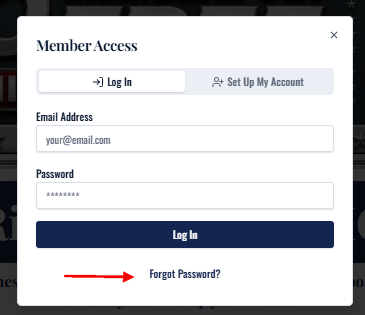
Enter your email and password and click Log In. Forgot your password? Click Forgot Password? and follow the emailed link. Once signed in, the top bar shows Signed in as your username, with a Sign Out button.
2Your account page
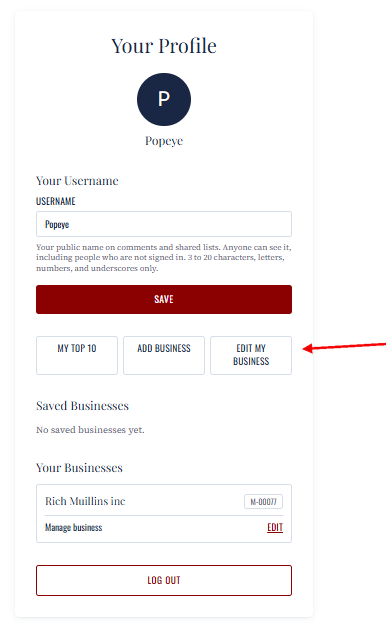
After logging in, click your name in the top bar (Signed in as ...) to open your account page. This is your personal hub. Your business listing is one level down.
- Username is what shows on any comments or lists you post as a shopper. It is not your business name.
- Edit My Business opens your Member Dashboard. If you own more than one business, use the Edit link beside the specific location under Your Businesses.
- Add Business starts a listing for a different business under the same login. If you have another storefront or office for the same business, do not use Add Business. Add it under Your Locations on the edit page instead (see section 4).
- Top 10 is for Movies and TV. Create top ten lists and share them with others. Your same login lets you leave comments and rate content on the site and in the app.
3Your member dashboard
The dashboard is a read only snapshot of what shoppers see on your public profile, plus your certified member logo tools. Nothing here is edited directly. Use the Edit Business Info button at the bottom.
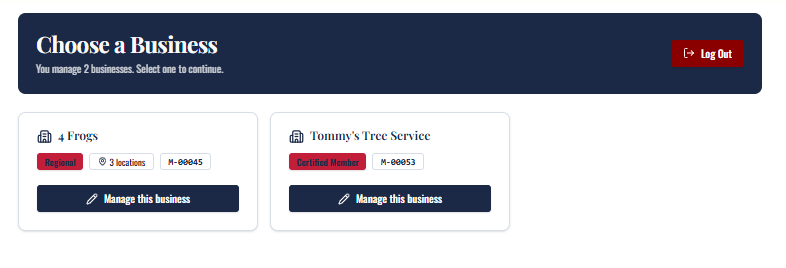
If you own more than one location, you first see a Choose a Location screen listing each one with its photo count. Click Edit this location to open that location. Once inside, Switch Business and Switch Location buttons sit in the header so you can move between them without logging out.
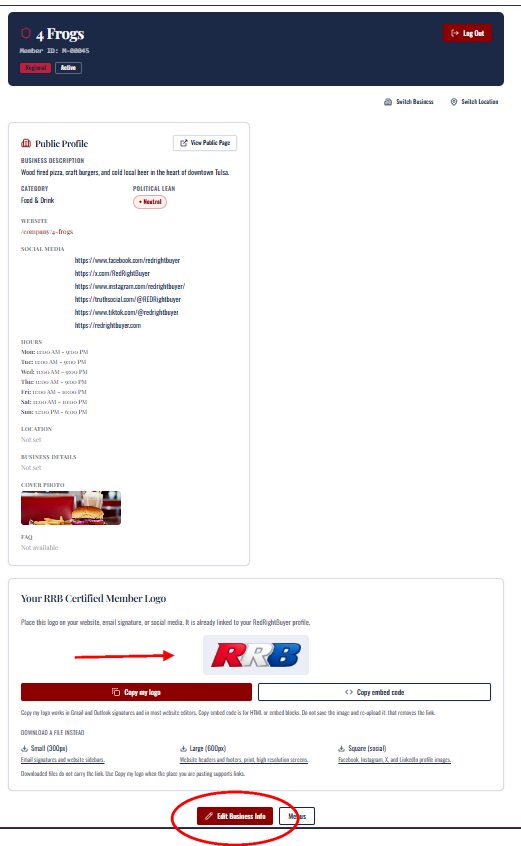
Your certified member logo
Your RRB logo is pre-linked to your profile.
- Copy my logo pastes a clickable logo into Gmail and Outlook signatures and most website editors. Use this whenever the destination supports links.
- Copy embed code gives you HTML for web pages or embed blocks.
- Download a file gives you Small (300px) for email signatures and sidebars, Large (600px) for headers, footers, print and high resolution screens, and Square for Facebook, Instagram, X and LinkedIn profile images. Downloaded files do not carry the link.
4Editing your business profile
Click Edit Business Info on the dashboard. The edit page is one long form with a section for each part of your listing. Some fields save right away. Others get a quick automatic content check first, and a few are reviewed by our team. The rule of thumb at the end of this section lists which is which.
At the top of the page you will find Back to Dashboard and Preview Your Profile, which opens your public page in a new tab so you can check your work.
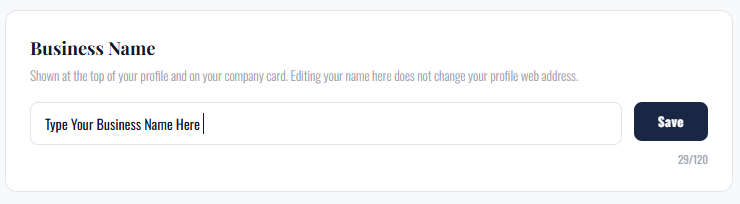
Business nameSaves now
Add Your Badges
Your profile has a Badges row just above your photos. Your RedRightBuyer Certified Member badge is already there, and it links back to your profile.
You can add up to 3 more badges, like your BBB seal, a badge from a Christian business directory you belong to, or an accreditation or award your business holds.
To add a badge:
- Open the edit page (Edit My Business, then Edit Business Info).
- Find the Badges card above Photos.
- Click Choose badge image.
- Add a name and, if you want, a link to your listing on that site.
- Check the box confirming your business is allowed to display the badge.
- Click Add.
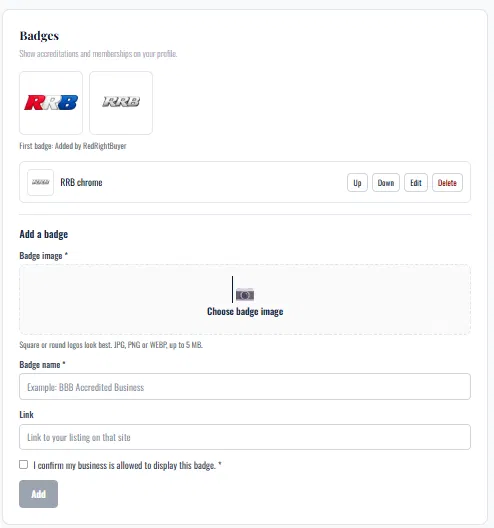
Square or round logos look best. Every badge image is checked automatically before it stays on your profile. RedRightBuyer does not verify memberships, so only add badges your business has earned.
Photos
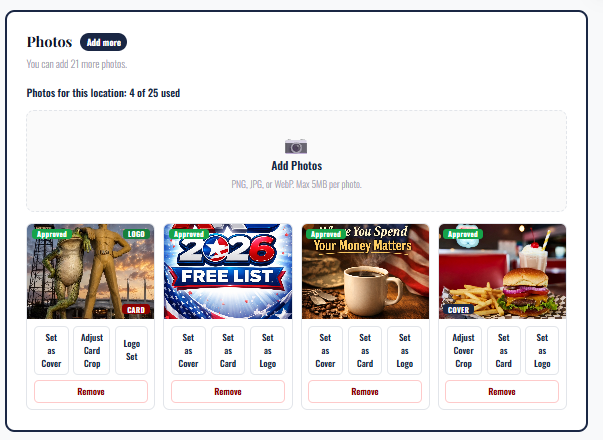
Photos come right after Badges on the page, because listings with photos get noticed first. The card shows how many photos you have used and how many your plan allows. If you have not added any yet, the card has a red border and an Action needed tag. If you have room for more, it shows Add more and how many you can still add.
- Cover: the wide banner across the top of your full profile.
- Card: the main image on your company card.
- Logo: your brand logo, shown in search results.
After assigning Cover or Card, use Adjust Crop to frame it. Photos go live as soon as you save. Every new photo is checked automatically. If one is held for a closer look, we will email you and let you know once it has been reviewed.
Categories
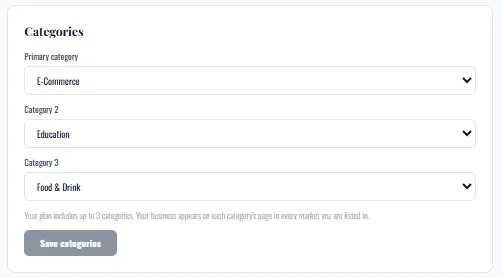
Pick the categories that fit your business, up to the number your plan allows. More categories mean shoppers find you in more searches. Changes save the moment you click Save.
Political lean display
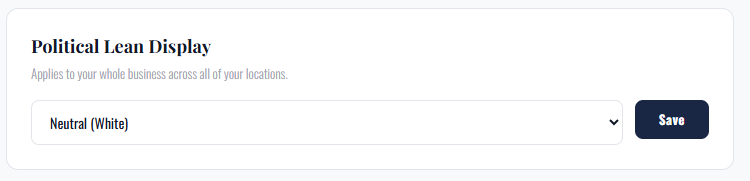
Applies to your whole business across all of your locations. Every member starts as Neutral. Blue is liberal and red is conservative: Blue, Leans Blue, Neutral, Leans Red, Red. Unlike non member companies, which are rated by our editorial team, certified members choose their own lean.
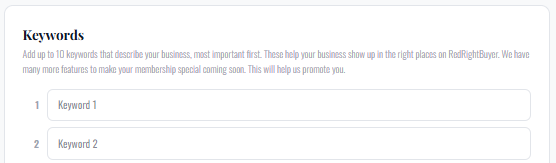
KeywordsSaves now
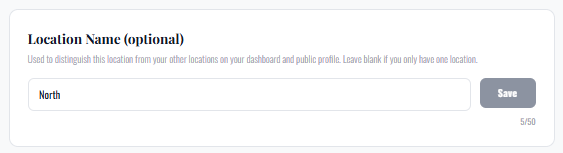
Location name (optional)Saves now
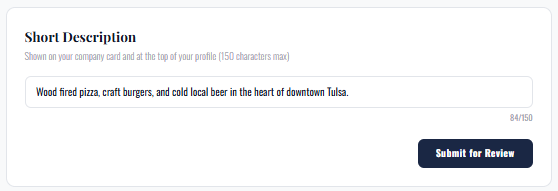
Short descriptionAuto check
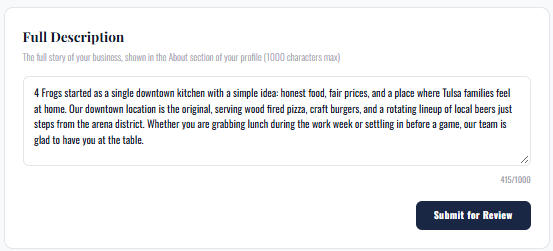
Full descriptionAuto check
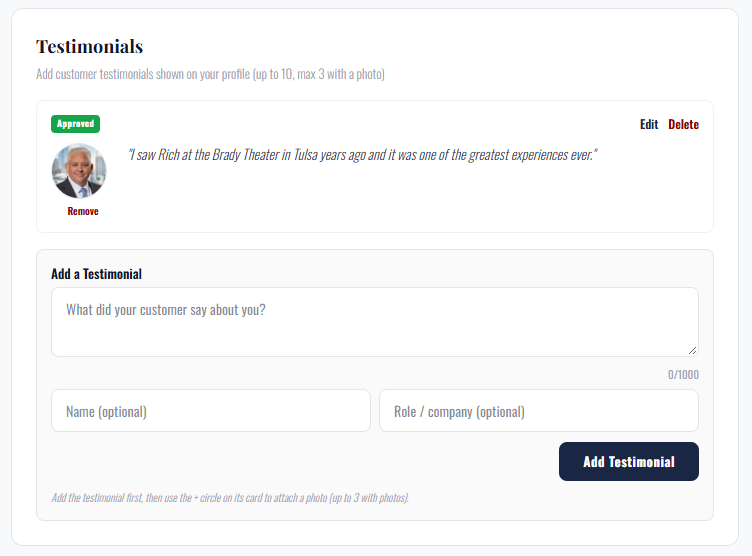
Testimonials
Add up to 10 customer testimonials, up to 1000 characters each. Add the text first, then use the plus circle on its card to attach a customer photo. Up to three testimonials can carry a photo.
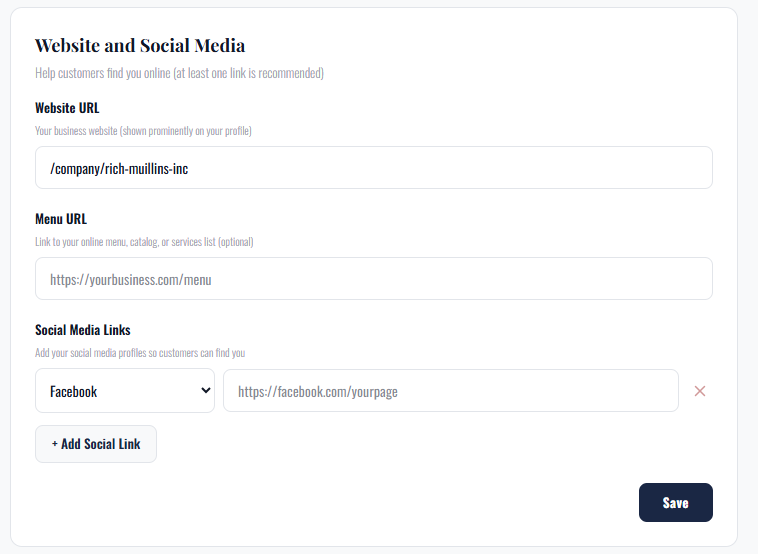
Website and social media
Your website URL is shown prominently. The Menu URL is for an external menu or catalog. If you build menus inside RedRightBuyer (see section 5) you can leave it blank. Add as many social links as you like. Saves immediately.
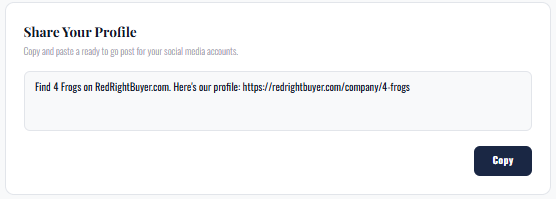
Share your profile
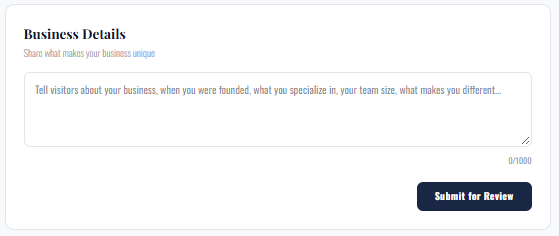
Business detailsAuto check
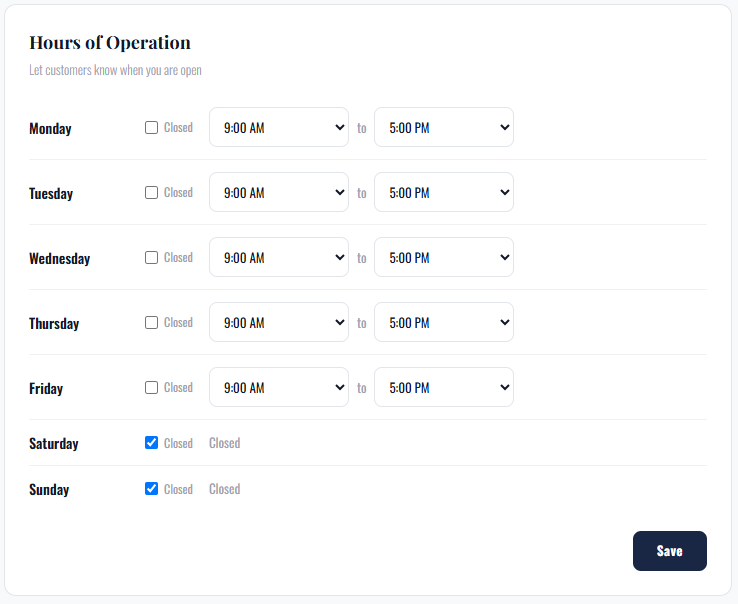
Hours of operation
For each day, mark Closed or pick opening and closing times in 30 minute steps from 5:00 AM to 11:30 PM. Saves immediately.
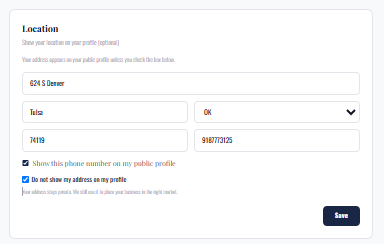
LocationSaves now
Your address and phone start out private. The address and phone number you gave when you signed up are not shown on your profile.
To show your address:
- Open the Location box on the edit page.
- Uncheck "Do not show my address on my profile."
- Click Save.
To show a phone number, enter it, check Show this phone number on my public profile, and click Save. While your address is hidden it does not appear anywhere on the public site, and we still use it to place your business in the right market.
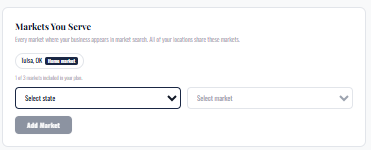
Markets You ServeSaves now
- Pick a state.
- Pick a market.
- Click Add Market.
- Choose Other, Request a New Market.
- Type the city.
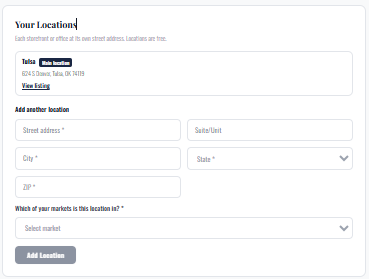
Your LocationsSaves now
- Fill in the street address, city, state and zip.
- Choose which of your markets it is in. It must be one of your markets in the same state. If it is not, add that market first under Markets You Serve.
- Click Add Location.
- Switch to the new location from your dashboard to add photos and hours.
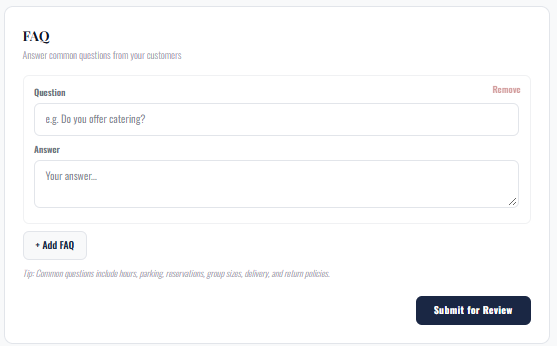
FAQ (Featured and Regional memberships)Auto check
5Food and drink menus
Restaurants, bars, cafes and food trucks can publish full menus directly on their RedRightBuyer profile instead of linking out. Menus are available to members in the Food and Drink category and are managed per location.
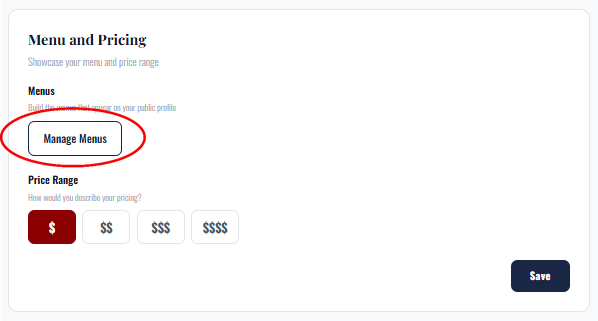
The Menus page
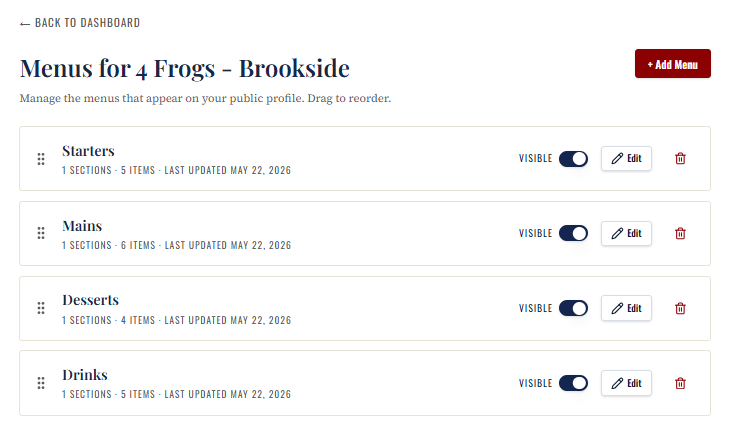
Each row shows the menu name, its section and item counts, when it was last updated, and four controls:
- Drag handle: drag rows up or down to set the order menus appear on your profile.
- Visible toggle: switch a menu off to hide it from your public profile without deleting it. Useful for seasonal or event menus.
- Edit: opens the menu editor.
- Delete: removes the menu and everything in it.
To create a menu, click Add Menu, name it (Breakfast, Lunch, Drinks, Specials, Catering), and it appears in the list. Every new menu starts with one section already in place, so you can add items right away.
Inside a menu
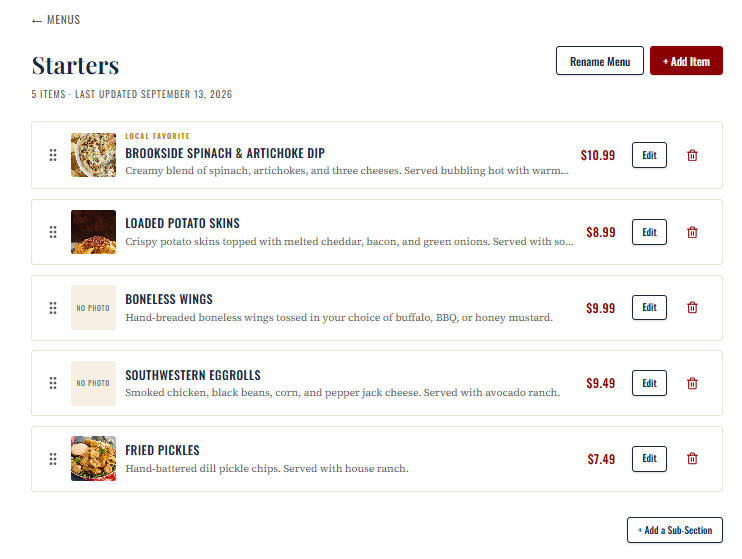
The editor shows the menu name, its item count and last updated date, and the items in order.
- Back to Menus returns to the Menus page.
- Rename Menu changes the name shown as a tab on your public profile.
- Add Item opens the item form.
- Item cards each show a photo slot, an optional badge, the name, description and price, with a drag handle to reorder, plus Edit and Delete.
- Add a Sub-Section splits the menu into groups such as Appetizers, Entrees and Sides. Each sub-section has its own Rename Section, an Add Note line (for example, All burgers served with fries), and its own Add Item.
Adding or editing an item
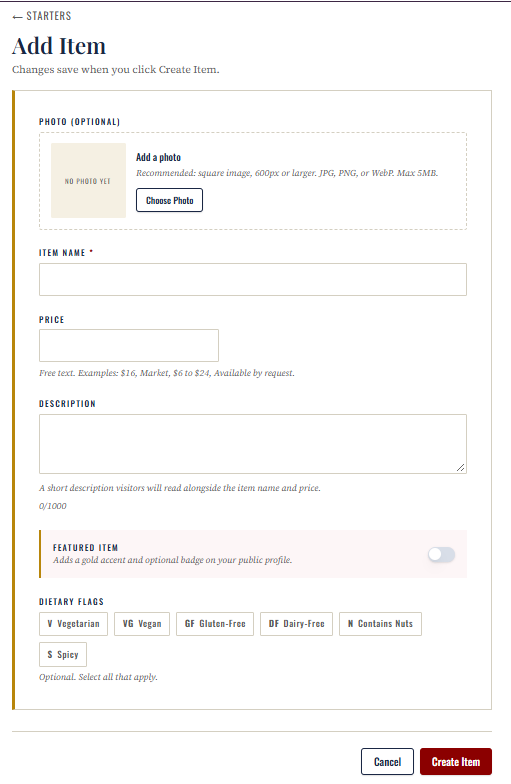
- Photo (optional): square image, 600px or larger, JPG, PNG or WebP, 5MB max.
- Item Name: required.
- Price: free text, so you are not locked to a number. Examples: $16, Market, $6 to $24, Available by request.
- Description: up to 1000 characters, shown alongside the name and price.
- Featured Item: adds a gold accent and unlocks an optional badge such as Chef's Selection, House Specialty, Local Favorite or New.
- Dietary flags: tick any that apply: Vegetarian, Vegan, Gluten Free, Dairy Free, Contains Nuts, Spicy.
Existing items also have a Delete Item button at the bottom of the form. Menu changes go live as soon as you save. They are not held for staff review.
What shoppers see
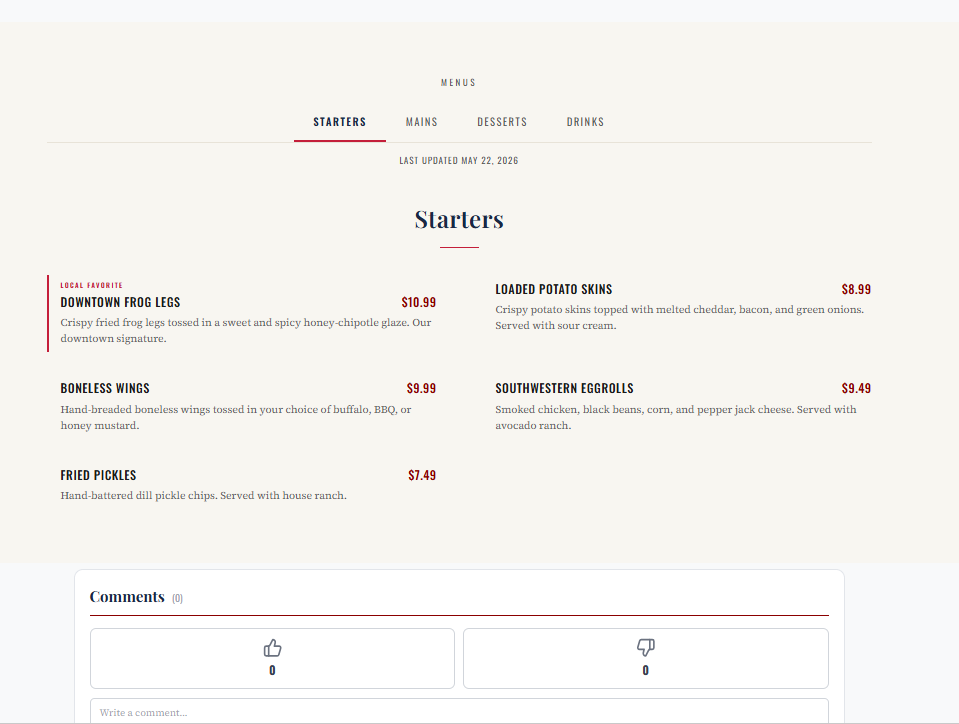
Your profile shows a Menus section with one tab per visible menu, a Last updated line, and a two column list of items with name, description and price. Featured items carry their badge and accent. Sub sections appear as headed groups within the tab.
Questions? redrightbuyer.com/contact